Skip to content
Browser directory tree tool for developers

Select a local folder in your browser, parse the real project tree, hide noisy folders, add aligned annotations, and export README-ready ASCII, Markdown, TXT, or JSON.

No sign-up. No install. Folder reading, tree editing, rendering, and export run in your browser.

Use terminal `tree` for a quick snapshot. Use dir-tree when that snapshot needs hiding, annotations, and polished documentation output.

Folder importRepo / ZIP supportASCII exportOptional AI annotations

Live directory tree workspace

Generate an annotated folder tree from your own project

Use the live workspace to import a project structure, hide noisy nodes, add annotations, preview ASCII, and copy or download documentation-ready output.

Loading the live workspace

The directory tree editor runs in your browser so you can try the workflow without creating an account.

Why dir-tree

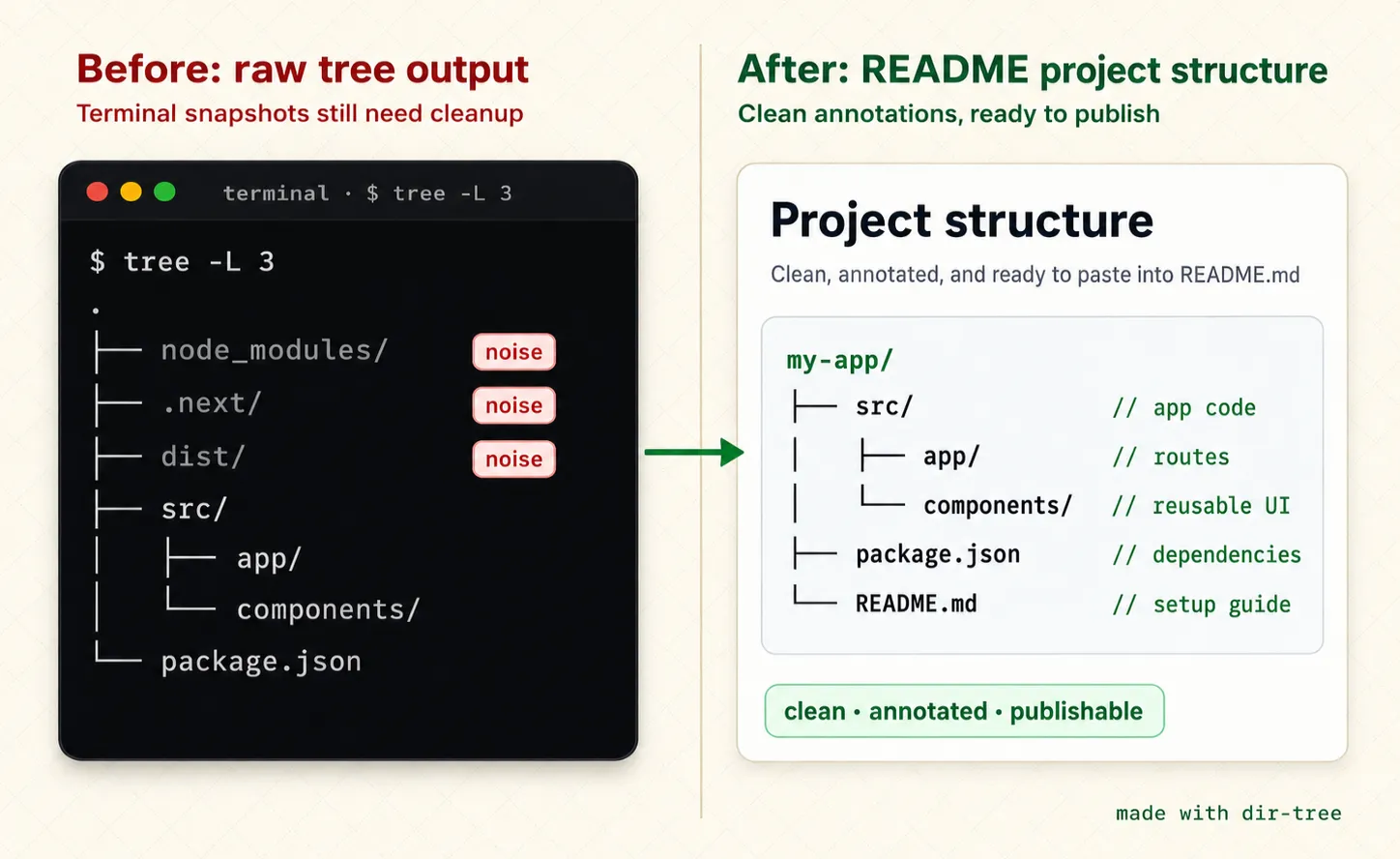
Turn noisy `tree` command output into a clean README project structure

The terminal `tree` command is great for quick snapshots. Documentation needs hidden build output, .gitignore-aware filtering, aligned annotations, style controls, and exports that stay readable in README files, docs, and pull requests.

dir-tree turning noisy tree command output into a clean README project structure with aligned annotations
Hide generated folders, align annotations, and publish a README-ready project structure.
01

Stop rebuilding trees by hand

Start from a real folder, repository, ZIP file, remote ZIP URL, or existing tree output instead of stitching project structure notes together manually.

Folder import · Repo URL · ZIP · Remote ZIP · Tree output

Before

README draft
- copied terminal output
- old folder list
- manual cleanup notes

After

my-app/
├── app/              // routes
├── components/       // reusable UI
└── package.json      // dependencies
02

Hide generated noise

Remove node_modules, build output, caches, and generated folders from the published view without changing files on disk.

Depth · .gitignore · Exclude rules · Hide nodes

Before

$ tree -L 3
.
├── node_modules/
├── .next/
├── dist/
├── src/
└── package.json

After

my-app/
├── src/              // app code
└── package.json      // dependencies
03

Make annotations and style readable

Add manual annotations or optional AI drafts, then align comments and tune the tree style so the output stays easy to scan.

Tree style · Manual annotations · Aligned columns

Before

├── auth.ts // auth?
├── api.ts        // client
└── format.ts // helper

After

├── auth.ts           // sign-in flow
├── api.ts            // API client
└── format.ts         // text formatting
04

Publish without reformatting

Copy clean ASCII, download Markdown or TXT, or export JSON after choosing the tree style that fits your README, docs, or pull request.

Tree style · Markdown · TXT · JSON

Before

Paste raw output
fix spacing
wrap code block
repeat next time

After

Ready to publish
Copy to clipboard
Download Markdown
Download TXT
Export JSON

Workflow

Import, clean, annotate, and export in one browser workflow

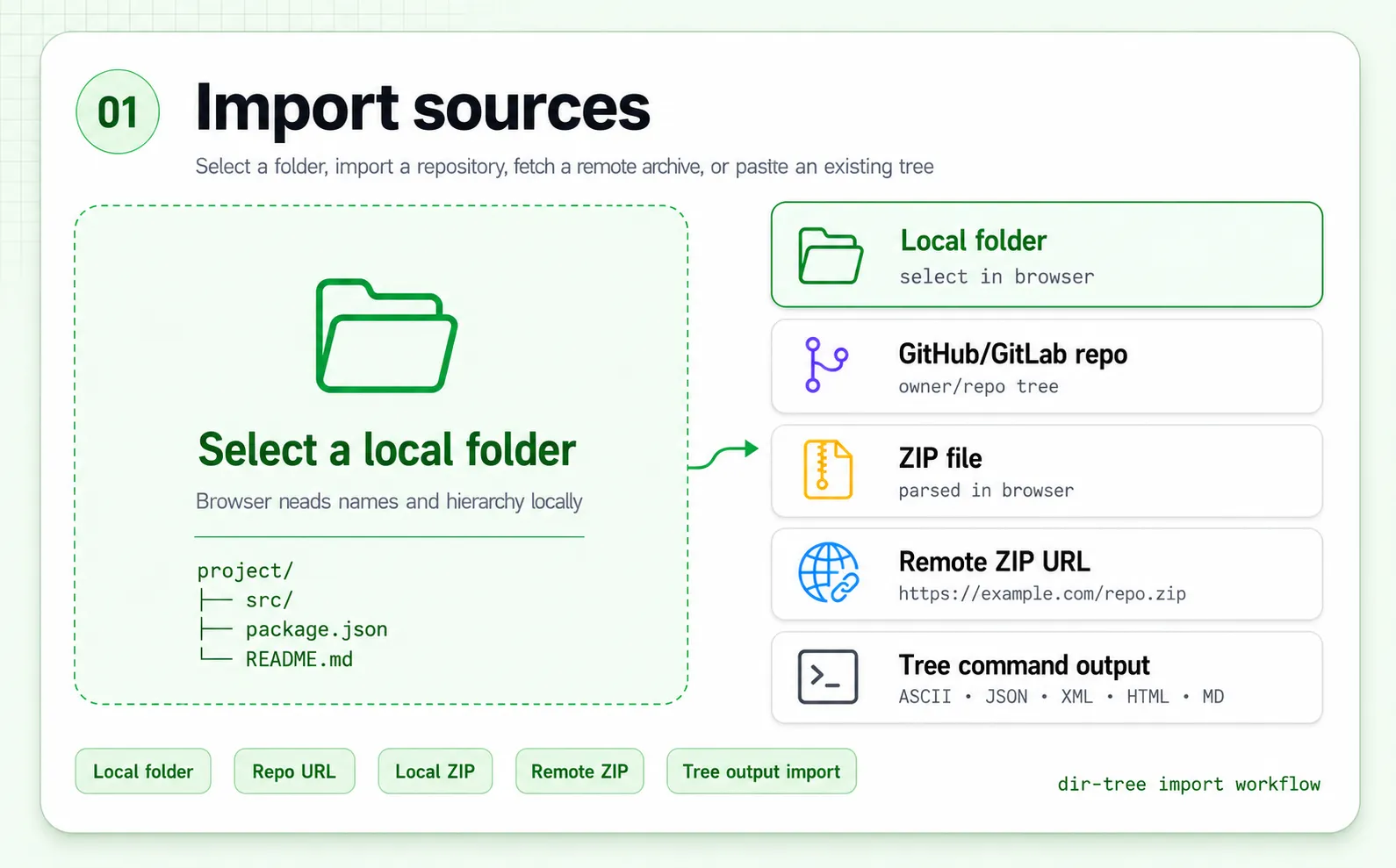
dir-tree normalizes local folders, ZIP archives, remote URLs, pasted ASCII trees, JSON, XML, HTML, and Markdown lists into one styled project structure.

dir-tree importing a local folder, GitHub or GitLab repository, ZIP file, remote ZIP URL, and tree command output in the browser
Start from a folder, repository, ZIP, remote URL, or existing output.

Import sources

Start from a local folder, dragged directory, GitHub/GitLab repository, ZIP file, remote ZIP URL, or existing tree output.

FolderRepo URLZIPRemote ZIPASCII · JSON · XML · HTML · MD
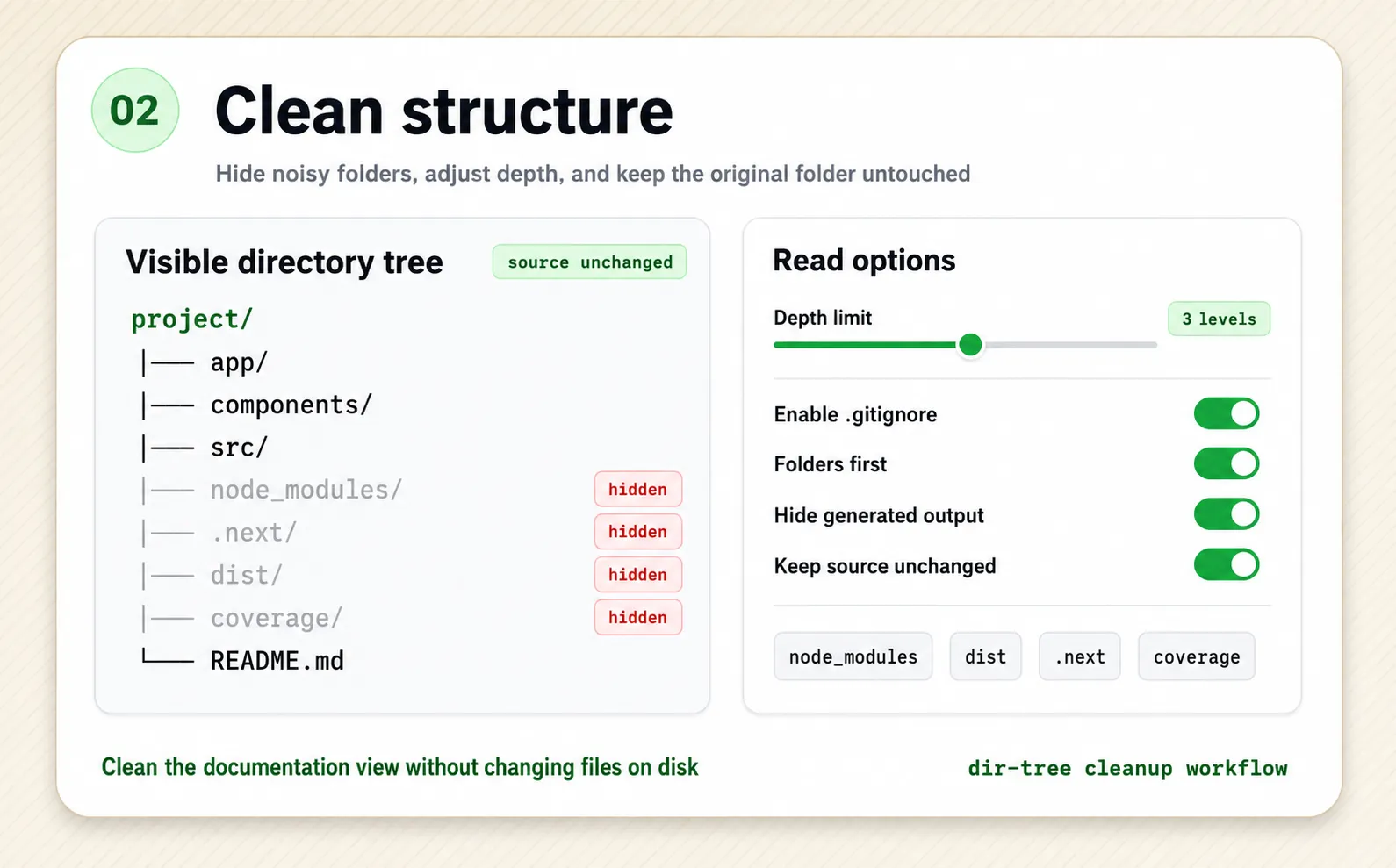
dir-tree cleaning a project directory tree with depth limits, .gitignore rules, exclude patterns, and hidden build folders
Hide noise, adjust depth, and reorder structure without touching source files.

Clean the structure

Apply depth limits, .gitignore rules, exclude patterns, sorting, and hidden nodes without changing files on disk.

Depth limit.gitignoreHide noiseReorder
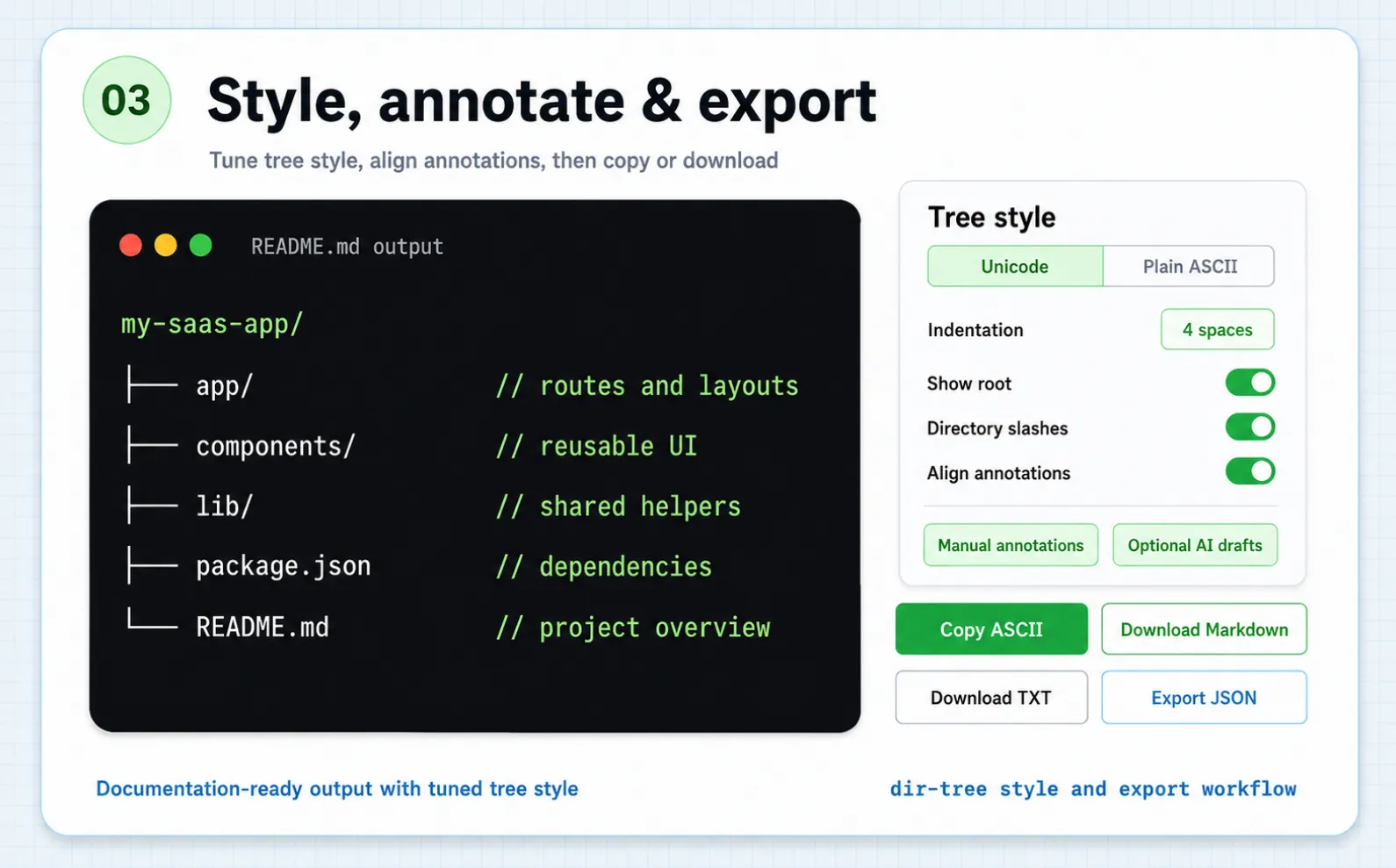
dir-tree customizing tree style, aligning annotations, and exporting README-ready ASCII, Markdown, TXT, and JSON
Tune the tree style, align annotations, then copy or download.

Style, annotate, and export

Choose Unicode or plain ASCII connectors, adjust indentation and annotation alignment, then copy output or download Markdown, TXT, and JSON.

Tree styleAligned annotationsMarkdown · TXT · JSON · Clipboard
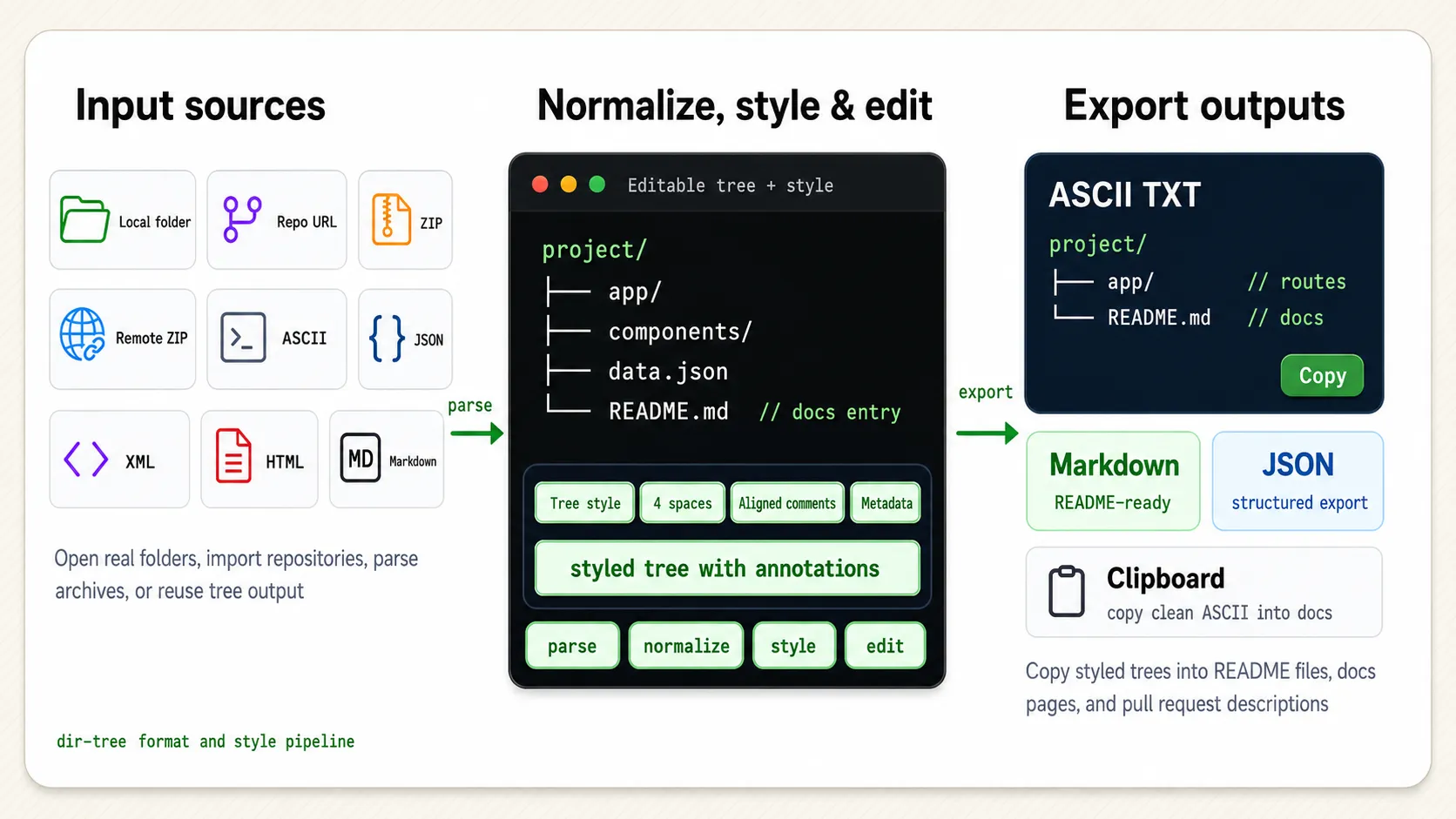
dir-tree format pipeline importing local folders, GitHub and GitLab repositories, ZIP, tree text, JSON, XML, HTML, and Markdown and exporting Markdown, ASCII TXT, JSON, and clipboard output
Import common project structure sources, including repositories, style one annotated tree, then export for docs.
Local folderRepo URLZIPTree textJSONXMLHTMLMarkdown
Parse + NormalizeStyled annotated tree
MarkdownASCII TXTJSONClipboard

Use cases

Built for README, docs, reviews, and teaching

Use dir-tree whenever a project structure needs to be explained, reviewed, taught, or pasted into developer documentation.

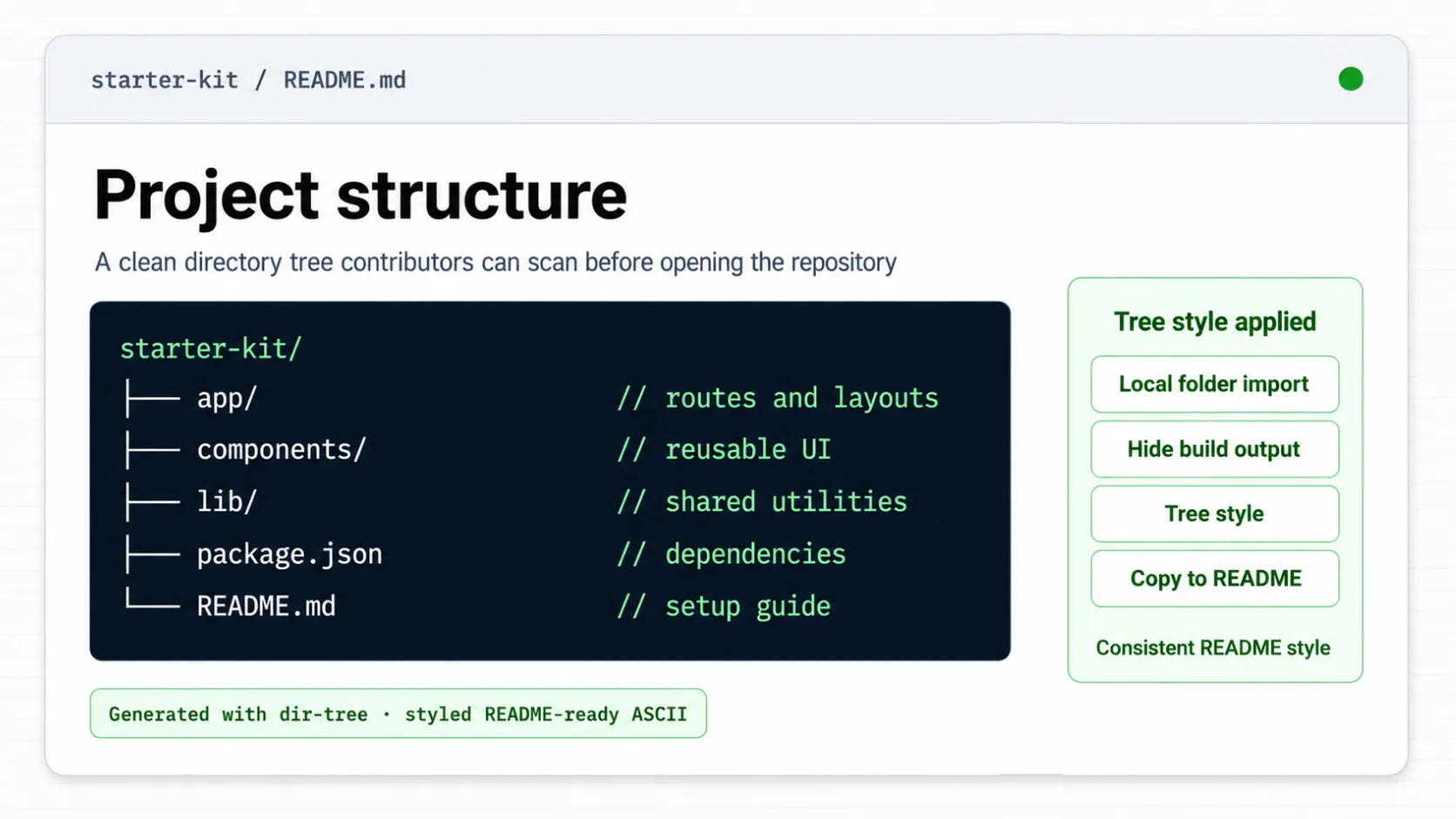
README project structure generated by dir-tree with aligned annotations and consistent tree style
Publish a clear, annotated project structure in README files.

README project structures

Open-source maintainers and template authors

Generate a clean folder structure for README.md without hand-aligning every line. Hide build artifacts, add short explanations, and choose a tree style that matches your repository docs.

Unicode output
Unicode output
starter-kit/
├── app/                  // routes and layouts
├── components/           // reusable UI
├── lib/                  // shared utilities
└── README.md             // setup guide
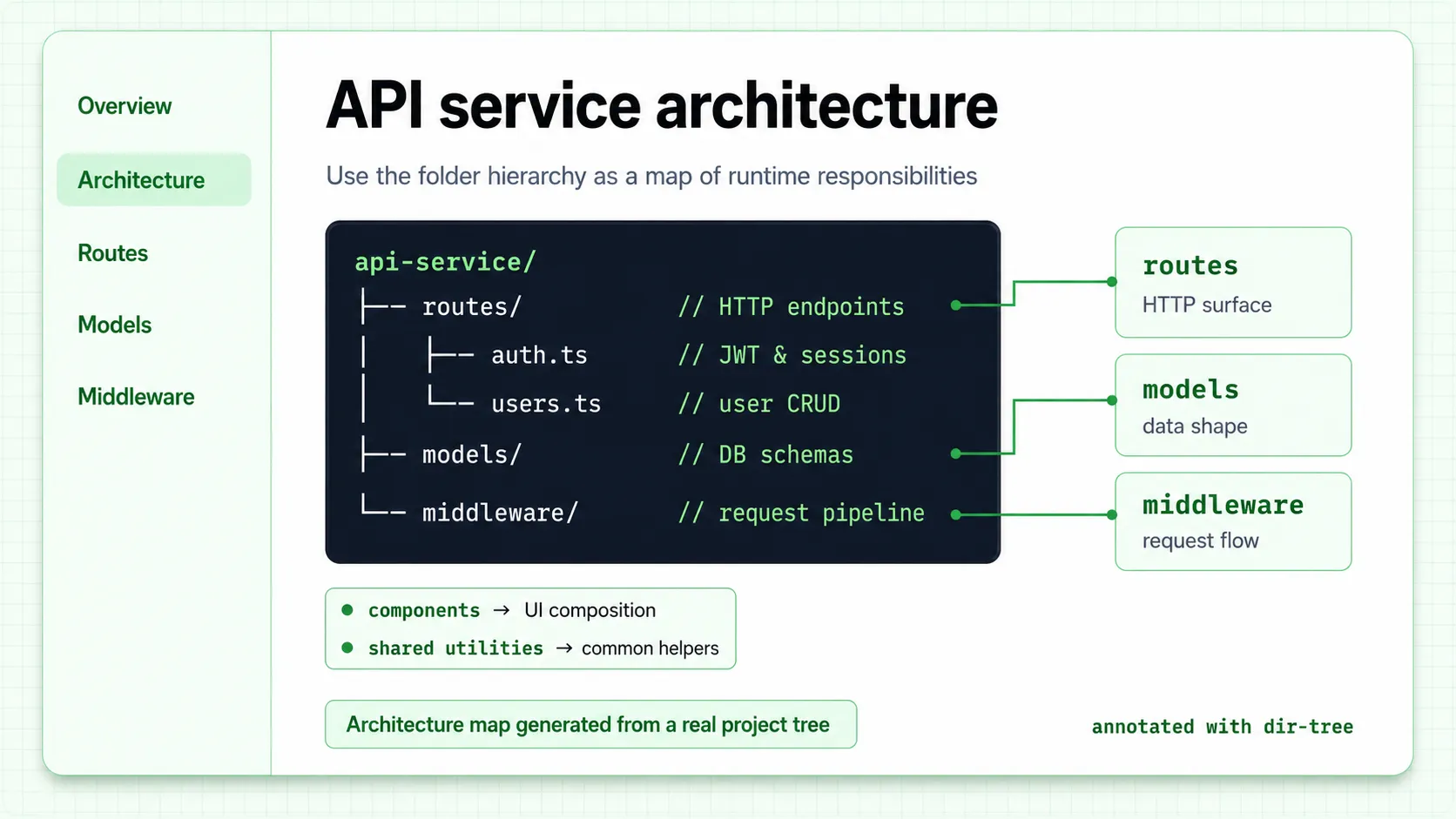
Technical documentation page using an annotated directory tree as an architecture map
Turn project structure into an architecture map readers can follow.

Annotated technical docs

Technical writers and developer advocates

Turn a project folder into an architecture map with aligned annotations and a consistent tree style for routes, models, middleware, components, and shared utilities.

ASCII output
ASCII output
api-service/
|-- routes/               // HTTP endpoints
|   |-- auth.ts           // JWT & sessions
|   `-- users.ts          // user CRUD
|-- models/               // DB schemas
`-- middleware/           // request pipeline
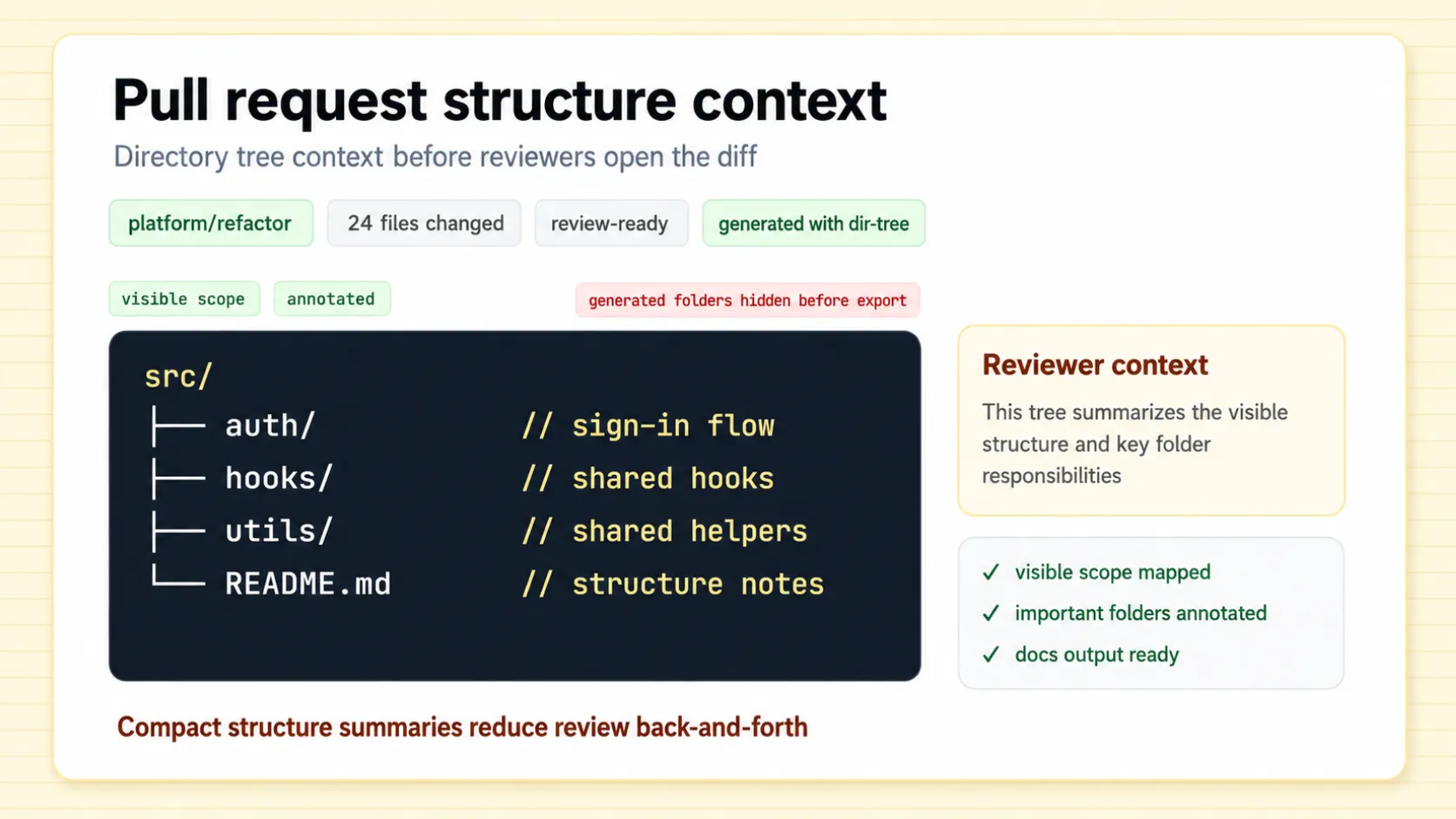
Pull request description using an annotated directory tree to explain refactor scope
Explain refactor scope with a compact annotated tree.

Pull request context

Engineers reviewing refactors

Give reviewers a quick map of the new structure, visible scope, and key folder notes before they open the diff.

Unicode output
Unicode output
src/
├── auth/                 // sign-in flow
├── hooks/                // shared hooks
├── utils/                // shared helpers
└── README.md             // structure notes
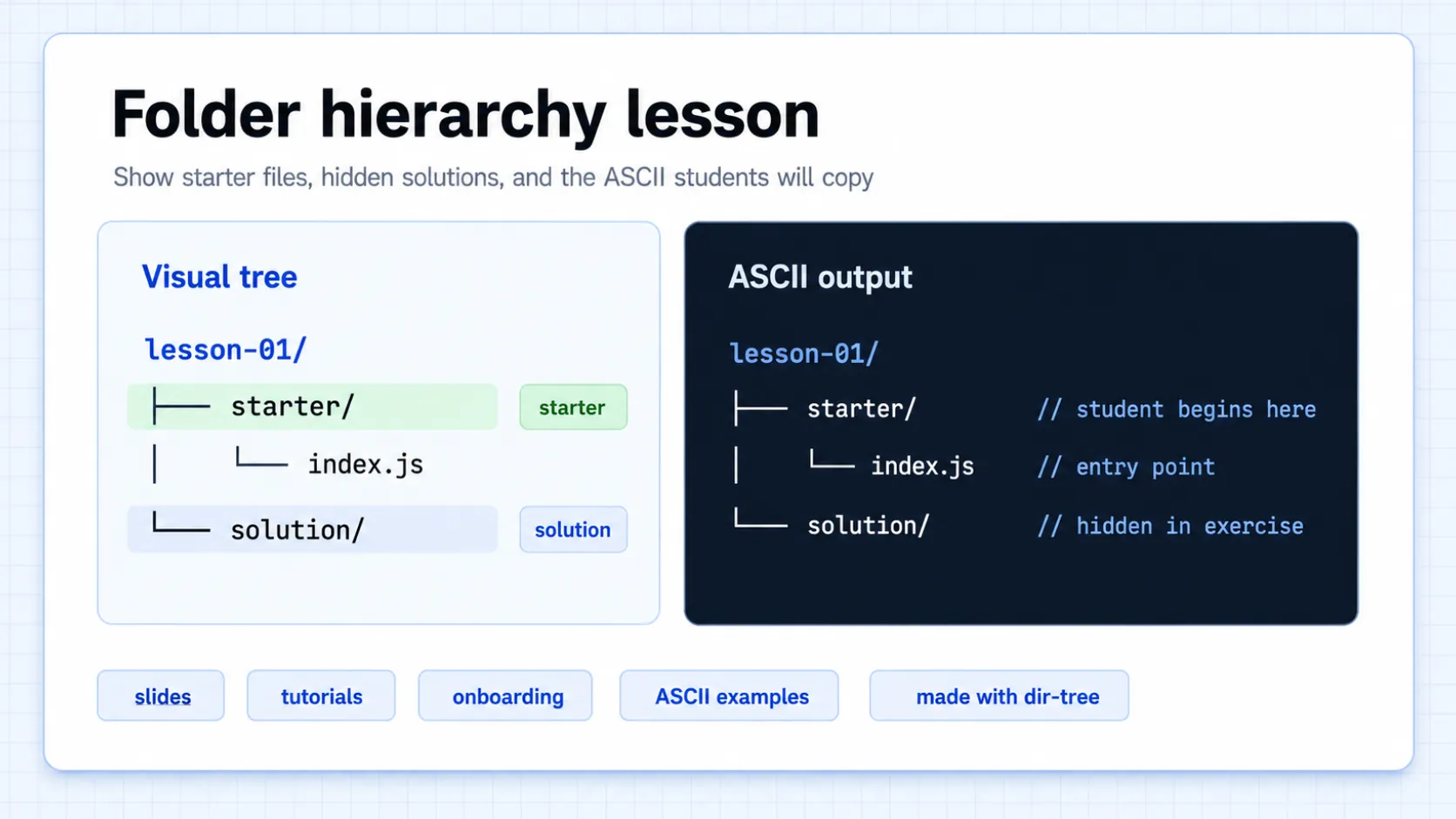
Folder hierarchy lesson showing visual tree and README-ready ASCII output
Show students both visual hierarchy and exact ASCII output.

Teaching folder hierarchy

CS instructors and course creators

Create folder hierarchy examples for tutorials, onboarding, and classroom material with both visual structure and consistent ASCII output.

ASCII output
ASCII output
lesson-01/
|-- starter/              // student begins here
|   `-- index.js          // entry point
`-- solution/             // instructor reference

Comparison

When dir-tree is better than terminal `tree`

Use terminal `tree` for quick snapshots. Use dir-tree when you need to import real project sources, edit the structure, hide noise, customize the tree style, add aligned annotations, and publish the result.

Terminal tree

Best for: Quick local snapshots

Raw output still needs cleanup before docs.

tree.nathanfriend.com

Best for: Hand-written ASCII diagrams

Useful for typed diagrams, but it does not read real project folders.

dir-tree

Best for: Documentation-ready project structures

Import, edit, style, annotate, and export from one browser workspace.

When dir-tree is better than terminal `tree`
CapabilityTerminal `tree`tree.nathanfriend.comdir-tree
Reads real local directoriesYesNoYes
Browser-based, no installNoYesYes
Local and remote ZIP supportNoNoYes
GitHub/GitLab repository URLs importNoNoYes
Import existing ASCII / JSON / XML treesOutput onlyLimitedYes
Visual editing and hide nodesNoEdit onlyYes
Tree style customizationManual flags and cleanupBasic visual optionsConnector style, indentation, root path display, metadata, and annotation templates
Annotation column alignmentNoNoYes
Manual and optional AI annotationsNoNoYes
Documentation-ready Markdown / TXT / JSON exportRaw outputGenerated ASCIIStyled and annotated

Privacy boundary

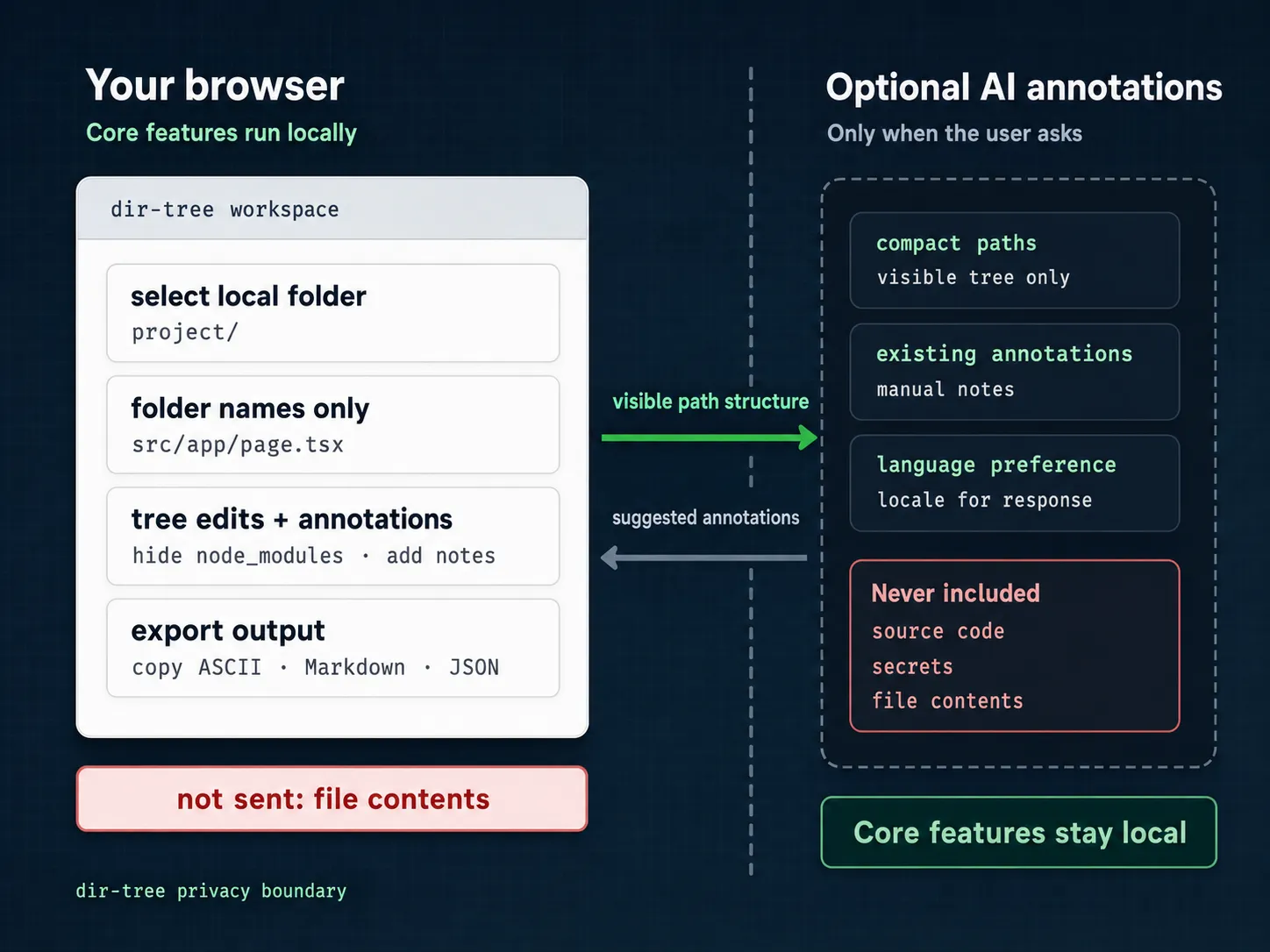
Directory tree work stays in your browser

Folder reading, local ZIP parsing, visual editing, ASCII rendering, and export run client-side. Optional AI annotation sends directory nodes you selected, existing annotations, generation settings, and any prompt you provide.

01

Directory tree work is local-first

Open folders, parse local ZIP files, edit trees, render ASCII, and export results in the browser.

02

File contents are not uploaded

dir-tree uses names, hierarchy, and optional display metadata for directory tree generation.

03

AI annotation is optional

Directory nodes you selected, existing annotations, generation settings, and any prompt you provide are sent only when you request optional AI annotations.

dir-tree privacy boundary showing local browser processing and optional AI annotation without file contents
Tree work stays in the browser; optional AI receives directory nodes you selected only when requested.

Optional AI data flow

  • Directory nodes you selected
  • Existing annotations
  • Generation settings
  • Your prompt
  • AI provider
  • Suggested annotations

File contents, source code, file sizes, and modification times are not part of the AI annotation payload.

User reviews

Trusted by people documenting real project structures

Developers, writers, and educators use dir-tree to turn folders, repositories, ZIPs, and existing tree output into styled, annotated project documentation.

"The README project tree used to be the part I avoided. Now I can update it after every release, keep the style consistent, and stop aligning annotations by hand."

Maya Chen, open-source maintainer

Maya Chen

Open-source maintainer

Template and starter-kit projects

README structures stay current

"I can import a project folder or repository, hide generated output, tune the tree style, and share a clean architecture map before the docs review starts."

Sofia Rivera, technical writer

Sofia Rivera

Technical writer

Developer docs team

Architecture maps are easier to review

"For refactors, the annotated tree gives reviewers a quick map of the new structure before they open the diff."

Ethan Brooks, staff engineer

Ethan Brooks

Staff engineer

Platform migration work

Reviewers see structure first

"The classroom examples finally match the folder hierarchy students see on disk, including the solution folders I need to hide during exercises."

Noah Kim, CS instructor

Noah Kim

CS instructor

Course and bootcamp material

Lessons match real folders

"Optional AI annotations give us a useful first draft, and the local-first boundary makes the workflow easier to use for internal docs."

Ava Patel, developer advocate

Ava Patel

Developer advocate

Product education content

AI drafts need less cleanup

"We use it to turn ZIP handoffs into readable folder maps before deciding what belongs in onboarding docs."

Daniel Wu, engineering manager

Daniel Wu

Engineering manager

Vendor and onboarding reviews

ZIP handoffs become readable maps

FAQ

Directory tree generator questions users ask

Yes. The directory tree generator, editor, annotation workflow, and ASCII export tools are free to use in the browser without creating an account.

Yes. Select or drag a local folder into dir-tree, and the browser reads the folder names and hierarchy so you can edit, annotate, and export the project structure.

No. dir-tree does not upload file contents or read source code. Folder reading, ZIP parsing, tree editing, ASCII rendering, copying, and export run in your browser.

dir-tree can import local folders, GitHub/GitLab repository URLs, local ZIP files, remote ZIP URLs, and `tree` command output from any platform, including ASCII tree text plus JSON or XML tree output when available. It also imports JSON tree data, XML, HTML, and Markdown list structures as styled directory trees.

The terminal `tree` command is useful for quick snapshots. dir-tree is better when you need a browser workspace to hide generated folders, apply depth or exclude rules, edit visible nodes, customize tree style, align annotations, and export documentation-ready output.

Yes. In the Tree style panel, you can choose Unicode or plain ASCII connectors, adjust indentation, show the root path, append directory slashes, display line numbers or file metadata, and control how annotations align before copying or exporting the tree.

Yes. Annotations are short notes attached to directory tree nodes. In exported ASCII trees, they appear as aligned line comments such as `// routes and layouts`, so README files and docs stay easy to scan.

Yes. AI annotation is optional, with 5 free requests per day on a UTC daily reset. When you request it, dir-tree sends directory nodes you selected, existing annotations, generation settings, and any prompt you provide. It does not send source code, document bodies, or file contents.

Yes. After cleaning and annotating the visible tree, you can copy ASCII output or download Markdown, TXT, and JSON exports for README files, docs pages, and pull request descriptions.

Yes. You can limit visible depth, use `.gitignore`, apply exclude patterns, hide generated folders, collapse folders, and export a focused tree for documentation or review.

dir-tree works best in modern desktop browsers. Chromium-based browsers have the strongest folder picker support, while Firefox and Safari can use drag-and-drop or file picker fallbacks.

Ready to generate your first directory tree?

Open the live workspace. No sign-up, no install, browser-first.

Try dir-tree in your browser